
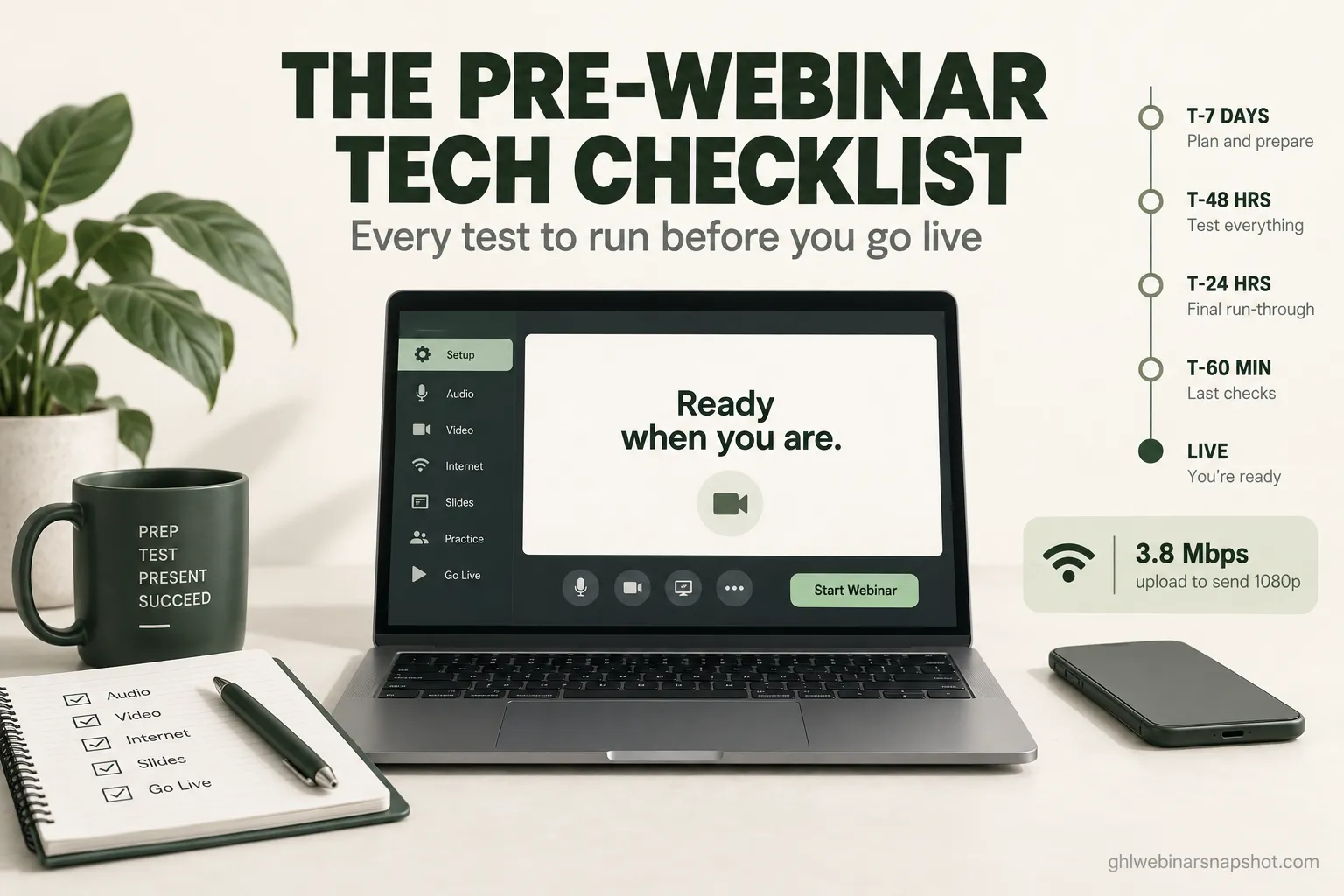
A pre-webinar tech checklist is the set of tests you run before you go live so the session does not die on air: confirm your platform plan can hold the room, confirm your upload speed can send clean video, test the exact mic and camera you will use, line up a backup device and a backup link, and verify the registration-to-room handoff actually lets people in. Run it as a countdown. Do the slow, fixable work days out (plan limits, a full dry run, bandwidth), and keep the last hour for a short green-room pre-flight you could do in your sleep. Most webinars that fall apart do not fail because of one freak event. They fail because nobody tested the obvious thing on the device they were actually going to use, at the time of day they were actually going to present. This checklist closes that gap.
It is 1:52pm. Your webinar starts at 2:00. Two hundred people registered, and the live room shows you as “connecting” with a spinning icon. You join from your phone to check, and the phone gets in fine, which means the room is up and your laptop is the problem. You have eight minutes to figure out whether it is the browser, the camera driver that updated last night, or the hotel-grade upload speed in your home office at the one time of day your whole street is streaming. This is the moment a checklist is supposed to prevent, and almost nobody has one that is specific enough to help.
The reason this keeps happening is that “test your tech” is useless advice. Test what, on which device, under what load? A real checklist names the test, the pass mark, and the failure mode. That is what this is, built for a live webinar where the stakes are highest, with a short section on what changes for evergreen. Save it, print it, and run it the same way every time.
Table of contents
- What a pre-webinar tech check actually is
- What a blown tech check costs you
- The countdown: seven checkpoints
- T-minus 7 days: plan limits and the dry run
- T-minus 48 hours: bandwidth, hardware, backup
- T-minus 24 hours: links and the handoff
- T-minus 60 minutes: the green-room pre-flight
- T-minus 10 minutes: the go-live sequence
- During the webinar: live monitoring
- Steal these holding messages
- Three run-of-show plans by team size
- Live vs evergreen: what changes
- The compliance checks you cannot skip
- Objections, answered
- FAQ
What a pre-webinar tech check actually is
A pre-webinar tech check is a rehearsal of the failure, not a glance at the settings. The point is not to confirm your webcam turns on. It is to send real video, over your real connection, from your real device, and watch for the thing that breaks. A settings screen tells you a feature exists. A rehearsal tells you whether it survives contact with your actual network at 2pm on a Tuesday.
That distinction matters because webinars still earn their keep. In the 2026 B2B content research, 52% of marketers named webinars among their most effective content types for thought leadership. A dropped frame during the pitch is not a tech annoyance, it is a hole in the one part of your funnel you cannot re-run.
Sources: Livestorm 2026 Webinar Benchmark Report; Tatango; Zoom system requirements; MarketingProfs / CMI 2026.
What a blown tech check costs you
The cost of skipping the check is not the embarrassment. It is the attendees who leave and never come back, measured against the ones you keep when the room holds. Take 200 people in the live room. A clean session keeps nearly all of them to the offer. A session that freezes for two minutes during the pitch bleeds people who assume it is their connection and give up, and they do not return for the replay because the live experience already told them the thing was broken.
More than twice the booked calls from the same room, decided by whether a two-minute freeze happened at the worst possible moment. Nothing in the content changed. That gap is the entire argument for running a checklist that is specific enough to catch the freeze before it happens, instead of discovering it live. If the room does break anyway, that is a different skill, and we cover it in the webinar tech failure backup plan. This guide is about not getting there.
The countdown: seven checkpoints
Everything below sits at one of seven points on a countdown. Do the fixable, slow work early. Keep the last hour calm.
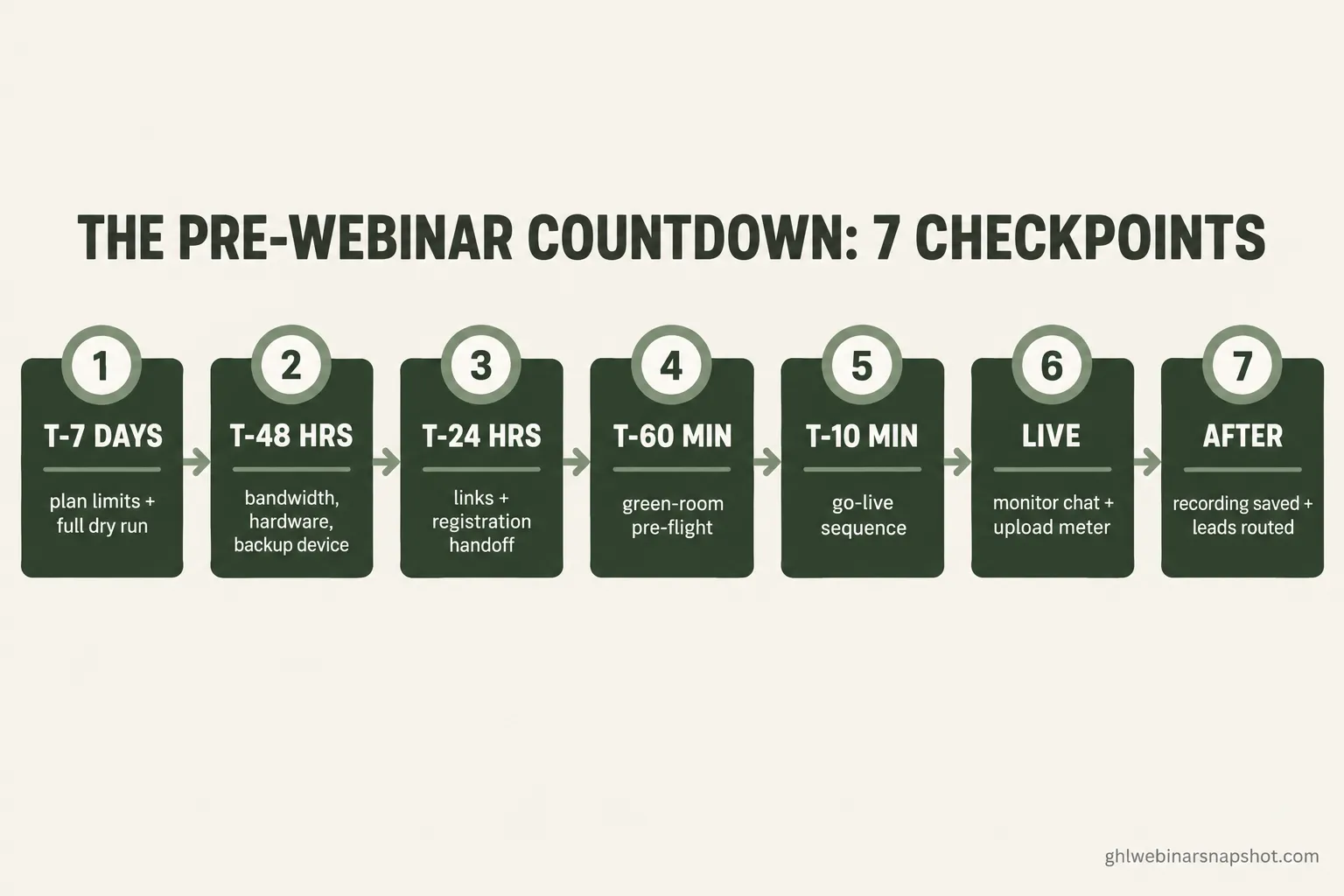
- 1T-minus 7 days
Plan limits + full dry run
Confirm the room can hold the headcount, then run the whole thing once on the real device.
- 2T-minus 48 hours
Bandwidth, hardware, backup
Speed test at show time, test the exact mic and camera, stage a second device.
- 3T-minus 24 hours
Links + registration handoff
Click every link as a registrant. Confirm reminders carry the correct join link.
- 4T-minus 60 minutes
Green-room pre-flight
Quiet, repeatable final checks: audio, screen share, slides, recording armed.
- 5T-minus 10 minutes
Go-live sequence
Open the room, fire the 'we're live' SMS, start recording, let people in.
- 6Live
Monitoring
Watch chat for 'can't hear you,' watch your own upload meter, co-host ready.
- 7T-plus 0 to 1 hr
Recording + handoff
Confirm the recording saved, replay link works, hot leads routed to booking.
T-minus 7 days: plan limits and the dry run
The checks: Confirm your platform plan holds the room you are actually selling. Attendee caps are the quiet trap. Zoom Webinars, GoTo Webinar, and most platforms tier their pricing by headcount (500, 1,000, 3,000), and the cap is a hard ceiling, not a soft warning. If you registered 1,200 people on a 1,000-seat plan, the 1,001st person gets locked out at the door. Confirm host and panelist seats too. If a guest expert is presenting, they need a panelist seat assigned, not a generic attendee link.
Then run the entire webinar once, start to finish, on the device you will present from. Not the slides in isolation. The whole flow: join as host, share your screen, advance slides, play any embedded video with sound, and watch the recording back afterward to hear what the audience hears.
How it breaks: The single most common failure here is the embedded video that plays silently for the audience because “share computer sound” was never ticked. You see and hear it on your end. They get a muted rectangle. The dry run is the only way to catch it, because your own machine lies to you about what is being transmitted.
T-minus 48 hours: bandwidth, hardware, backup
The checks: Run a speed test at the same time of day you will present, on the same connection, with everything else in the house running that normally runs. Upload is almost always the constraint, because home and office connections are built to download fast and upload slow. Zoom recommends 3.8 Mbps upload to send 1080p and 3.0 Mbps download to receive it, and notes that 720p is used for the active speaker in a standard webinar unless you are on a higher tier. Aim for roughly double the recommended upload as headroom, because video does not fail at the exact threshold, it degrades as you approach it.
Recommended bandwidth in Mbps. The first three are Zoom’s published figures; the last is a practical 2x-headroom target for the 1080p send case. Source: Zoom system requirements (KB0060748). Use a wired Ethernet connection if you possibly can.
Test the exact microphone and camera you will use, in the browser or app you will use. A headset mic and your laptop’s built-in mic sound completely different, and the one plugged in by default is often the worse one. If you present over Wi-Fi, stage a wired Ethernet cable as a fallback. Wired beats Wi-Fi for upload stability every time.
The backup: Stage a second device, fully logged in to the room as a co-host or panelist, muted, camera off, sitting on the desk. This is your parachute. If the primary laptop dies, you switch to the phone or tablet mid-sentence and the audience sees a five-second camera change instead of a dead room.
How it breaks: The classic bandwidth failure is testing at 9pm when the street is quiet and presenting at 2pm when it is not. Test at show time. The second failure is a driver or OS update that lands the night before and changes which camera or mic is the default. Lock updates for the 48 hours before the event if your device lets you.
T-minus 24 hours: links and the handoff
The checks: Click every link in your reminder sequence as if you were a registrant. The join link, the calendar add, the replay page, the “add to calendar” button. The handoff between your registration page and the live room is where silent failures hide: a reminder that went out with last month’s join link, or a calendar invite pointing at the wrong time zone.
Send yourself through the entire registration flow with a fresh email address. Register, receive the confirmation, receive the 24-hour reminder, and confirm the join link in that reminder actually opens the correct room. If your reminders run on SMS, confirm the “we’re live” text is scheduled and that the number sending it is a registered, compliant one. More on that below.
How it breaks: The reminder that carries a dead or wrong link is the quiet killer here, because it fails for the attendee, not for you. You never see the error. They click, land on a “this webinar has ended” screen, and leave. The only defense is to walk the path yourself, as a stranger, the day before. For the structure of a reminder cadence that holds show-up rate, see our webinar email sequence and the companion SMS reminder setup.
T-minus 60 minutes: the green-room pre-flight
The checks: This is the part you want to be boring. By now the risky work is done. The last hour is a short, repeatable pre-flight you run the same way every time. Close every application you do not need. Close every browser tab except the room. Silence notifications, Slack, email, and your phone. Plug in power. Confirm the mic and camera one more time inside the live room, not in a settings panel. Load your slides and advance through the first three. Confirm the recording is armed. Put a glass of water within reach.
Then open the room early and sit in it. Bring your co-host or producer in. Do a 30-second audio check between you, on the record, and play it back.
How it breaks: The pre-flight fails when it is improvised. If you do it from memory, you skip the one step that mattered this time. Keep the list on paper or a second screen and physically check each box. The discipline is the point.
T-minus 10 minutes: the go-live sequence
The checks: Run the final ten minutes in a fixed order. Open the room to attendees. Start the recording before you need it, not when you remember. Fire the “we’re live” SMS, because this is the single highest-impact message you will send all day. With roughly 90% of texts read within three minutes, a well-timed text pulls people off the fence who forgot the email. Then start admitting people and welcome the early arrivals by name in the chat so the room feels alive before you begin.
How it breaks: The two failures here are starting the recording late (and losing the opening) and firing the live SMS before the room is actually open, so the fastest clickers hit a locked door. Open the room first, confirm you can see it as an attendee on your backup device, then send the text.
Disclosure: the GoHighLevel links above are affiliate links. We may earn a commission if you sign up, at no extra cost to you, and the price is the same as going direct.
During the webinar: live monitoring
The checks: Once you are live, your attention splits three ways. Watch the chat for the phrase that means trouble: “can’t hear you,” “frozen,” “audio cutting out.” One person saying it might be their connection. Three people saying it is yours. Keep your own upload meter visible on a second screen if your platform shows it. And keep your co-host primed to take over narration if your video stutters, so there is never dead air.
How it breaks: The failure here is tunnel vision. You are presenting, you cannot see the chat, and you talk for six minutes to a room that stopped hearing you at minute two. This is exactly why the co-host exists. Their only job is to watch the signals you cannot while you present, and to type “we’re aware, fixing it now” the instant something slips. If it goes fully sideways, switch to the backup plan and lean on the holding messages below.
Steal these holding messages
Write these before the day and keep them where you can paste them in five seconds. The worst time to compose a calm message is while the room is on fire. Each one buys you time and keeps the audience from assuming the whole thing is dead.
Post in chat the instant something slips:
Quick heads up, we're having a brief tech hiccup on our end,
not yours. Hang tight for 60 seconds while we switch over. Your
seat is saved and the recording is running.
SMS to all registrants if the room link itself goes down:
[First name], our live room hit a snag. Jump back in here:
[new link]. We're picking up right where we left off in 2 min.
Reply STOP to opt out.
Say out loud while you switch to the backup device:
Bear with me one second, I'm switching to my backup camera so
we get the clearest signal for the rest of this. ... Okay, we're
back, can someone drop a "yes" in the chat if you can hear me?
SMS to attendees after a rough session, with the replay:
[First name], thanks for sticking with us through the tech
gremlins today. Here's the clean replay so you don't miss a
thing: [replay link]. The offer inside is good through [date].
Reply STOP to opt out.Three run-of-show plans by team size
The checklist is the same. Who runs it, and how much redundancy you stage, changes with the size of the operation.
Solo coach, selling from a laptop. You are host, producer, and chat monitor at once, which is why your backup matters most and your live monitoring matters least. You cannot watch chat while you present, so you lean on automation and a simple rule: stage the backup phone, pre-write the holding messages, and set a pinned chat message that says “drop any tech issues here and I’ll see them at the next break.” Do the full dry run and the 48-hour bandwidth test yourself. Accept that you will not catch a problem in real time, so your insurance is the backup device and the replay, not a co-host.
Mid-size team, one presenter plus a helper. Now you can split the jobs. The presenter presents and nothing else. The helper owns the chat, the upload meter, the recording, and the holding messages. This is the biggest single upgrade in reliability you can make, because it moves live monitoring from “impossible” to “someone’s whole job.” Run the dry run with both people in their real roles so the handoff is rehearsed, not improvised.
Enterprise B2B, dedicated producer and a committee audience. Here the stakes per attendee are highest, because a typical B2B buying group is six to ten people and your registrants are accounts, not individuals. Stage full redundancy: a wired primary, a wired backup on a separate network (a phone hotspot counts), a dedicated producer who touches nothing but the tech, and a run-of-show document every panelist has read. Test the panelist join flow for every guest 24 hours out, because an external presenter on an unfamiliar setup is your highest-probability failure point. The follow-up for these leads is its own system, covered in why webinar leads never book the call.
Live vs evergreen: what changes
An evergreen or automated webinar removes the live-broadcast risks and adds a different set. You are not worried about your upload speed at 2pm, because the video is pre-recorded and streamed from the platform. You are worried about whether the scheduled player fires on time, whether the “live” chat automation behaves, and whether the registration-to-room handoff works at every one of the times your funnel offers.
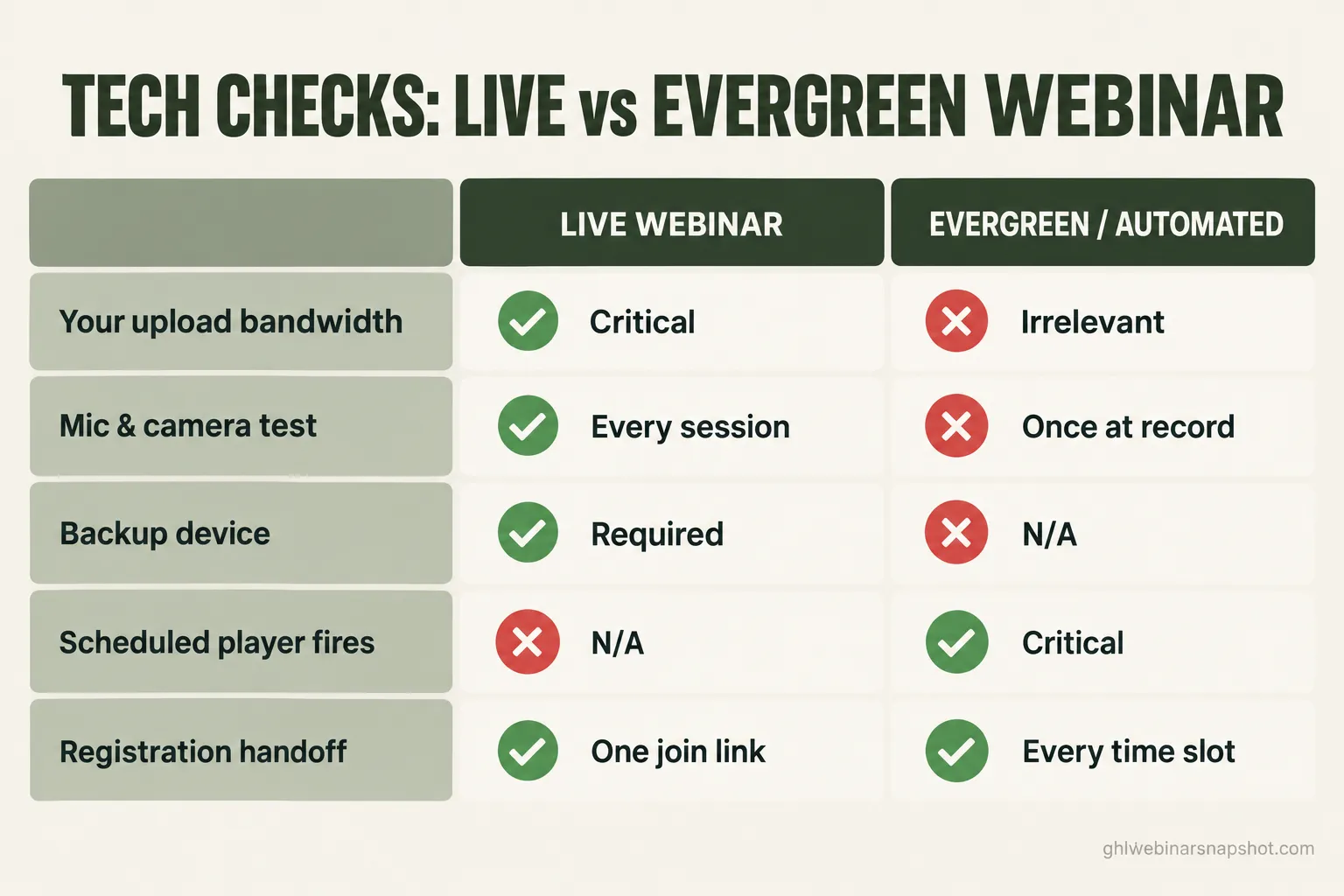
Tech checks that differ by format
| Feature | Live webinar | Evergreen / automated |
|---|---|---|
| Your upload bandwidth | Critical: test at show time | Irrelevant: platform streams it |
| Mic / camera test | Every session | Once, when you record |
| Backup device | Required | Not applicable |
| Scheduled player fires | N/A | Critical: test every time slot |
| Registration handoff | Test the one join link | Test every offered session time |
| Recording saved | Confirm after each live | Confirmed once at build |
The slow work moves from “test your connection before every session” to “test the funnel thoroughly once, then spot-check.” For the strategy behind choosing one over the other, see live versus evergreen webinars, and for the build itself, the webinar tech stack guide.
The compliance checks you cannot skip
Two tech decisions carry legal weight, and both belong on the checklist.
The SMS reminders. The “we’re live” text and the backup-link text are marketing or informational messages sent to a phone, which puts them under the TCPA and under carrier rules. In the United States, business texting runs through A2P 10DLC registration, and carriers now block messages from unregistered campaigns. Before the day, confirm your sending number is on a registered, approved campaign with documented opt-in consent, and that every template carries the STOP opt-out line. The rules around text consent have been shifting, so re-check the current FCC guidance rather than trusting a cached summary. Our SMS compliance guide for webinars walks the setup.
Recording consent. If your webinar records attendee audio or video, for example an interactive Q&A where people come on camera, recording-consent laws apply. Several states, including California, Florida, Pennsylvania, and Illinois, require all-party consent to record a conversation, and these rules are widely ignored and genuinely risky. The practical fix is simple: state clearly at the start that the session is being recorded, and put it in the registration terms. The broader set of rules is in our webinar compliance laws guide.
Objections, answered
“This is overkill. I’ve run 50 webinars and been fine.” You have been fine because you built most of these habits without naming them, and because you got lucky on the ones you skipped. The checklist is not for the 49 that go fine. It is for the one where the camera driver updated overnight and you have eight minutes and no written list of what to check. A written process costs you 20 minutes the first time and nothing the tenth time, because it becomes muscle memory.
“I don’t have a co-host or a producer.” Then you are the solo plan above, and your insurance shifts. You will not catch a live problem in real time, so you invest in the parts that do not need a second person: the dry run, the bandwidth test, the staged backup device, and the pre-written holding messages. A pinned “drop tech issues here” message and a strong replay cover the gap a co-host would otherwise fill.
“I use an automated webinar, so none of this applies.” Most of the live-broadcast section does not, which is exactly the point of the live-versus-evergreen table above. But the handoff checks, the link tests, the SMS compliance, and the recording-consent question all still apply, and arguably matter more, because an evergreen funnel fails silently for weeks before you notice.
“My platform says it handles all this automatically.” Platforms handle the room. They do not test your upload speed at 2pm, confirm the reminder that went out last week carries the right link, or write your holding messages. The automatic parts are real and worth having. The checklist covers the gaps between the automatic parts, which is exactly where live webinars break. If you would rather have the reminders, tracking, and booking flow built and tested for you instead of wiring them yourself, that is what the done-for-you Webinar Snapshot is, but you still run this checklist on the live-broadcast side every time.
FAQ
How long before a webinar should I run the tech check?
Spread it across a countdown. Confirm plan limits and run a full dry run about a week out, test bandwidth and hardware around 48 hours out, walk the links and registration flow 24 hours out, and keep a short, repeatable pre-flight for the final 60 minutes. The goal is that nothing risky is left for the last hour, because a problem you find at T-minus-5 is a problem you cannot fix.
What internet speed do I actually need to host a webinar?
Upload is the constraint, not download. Zoom recommends 3.8 Mbps upload to send 1080p and 3.0 Mbps download to receive it, and aiming for roughly double the recommended upload gives you headroom. Test at the exact time of day you present, on the connection you will use, and use wired Ethernet over Wi-Fi whenever you can.
What is the single most common webinar tech failure?
Testing on a device or network that is not the one you present from, at a time that is not when you present. The embedded video that plays silently because 'share computer sound' was off, and the home connection that is fine at 9pm but saturated at 2pm, are the two that catch people most often. A recorded dry run on the real device catches both.
Do I need a backup plan if my platform is reliable?
Yes. Reliability is about the platform's servers, not your laptop, your camera driver, or your street's upload speed at show time. A second device already logged in to the room, plus a pre-written message that re-sends the join link, turns a potential disaster into a 90-second blip. The backup plan guide covers the full recovery sequence.
Are the 'we're live' text reminders legal?
They are, when set up correctly. In the United States, business SMS runs through A2P 10DLC registration, and carriers block messages from unregistered campaigns. You need a registered, approved campaign, documented opt-in consent, and a STOP opt-out line on every message. Rules shift, so re-check current FCC guidance. See our SMS compliance guide.
Does any of this change for an evergreen webinar?
The live-broadcast risks go away because the video is pre-recorded and streamed by the platform, so your upload speed and backup device no longer matter. What matters instead is that the scheduled player fires on time and that the registration handoff works at every session time your funnel offers. Test the funnel thoroughly once, then spot-check. See live versus evergreen.
What should I check in the final ten minutes before going live?
Open the room to attendees, start the recording before you need it, confirm you can see the room as an attendee on your backup device, then fire the 'we're live' SMS, and welcome early arrivals by name in the chat. The two failures to avoid are starting the recording late and sending the live text before the room is actually open.
Run this the same way every time and the pre-webinar panic disappears, because there is nothing left to panic about. You tested the thing that breaks, on the device that breaks it, at the time it breaks. The room holds, the pitch lands, and the only thing left to do is book the calls.