Webinars are powerful. They educate, nurture, and convert. But what happens after the webinar ends?
Most businesses move straight to sales follow-ups and forget one of the most valuable assets they could collect testimonials.
A well-structured webinar review & testimonial automation workflow ensures that every attendee has an opportunity to share feedback, leave a review, and become a powerful piece of social proof for your brand.
In this guide, we’ll walk through how to build a smart, automated testimonial system that runs on autopilot inside GoHighLevel while still feeling personal and human.
Key Takeaways
- Automating webinar reviews increases credibility and conversions
- Timed follow-ups dramatically improve testimonial response rates
- Segmentation allows you to target happy attendees only
- Video testimonials can be collected automatically
- A single workflow can fuel your landing pages, ads, and email campaigns
Why Webinar Testimonials Matter More Than You Think
- Social proof
- Reviews
- Testimonials
- Case studies
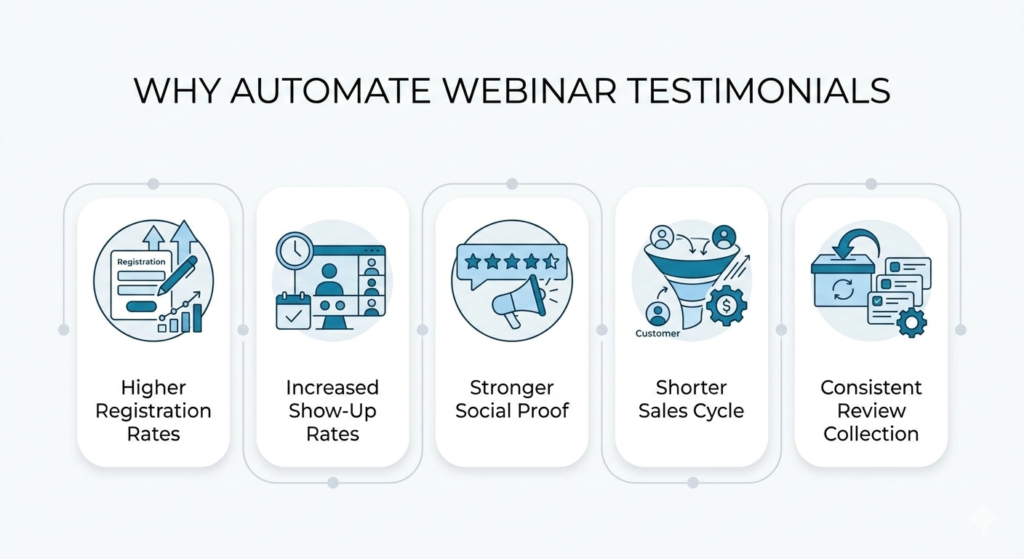
- Increase webinar registration rates
- Improve show-up rates
- Boost replay engagement
- Close more sales
- Strengthen brand authority
GoHighLevel Webinar Review Automation Workflow Setup
Let’s break this down step by step so you can implement it immediately.
Step 1: Segment Your Webinar Attendees
Before requesting testimonials, you want to identify the right audience.
Inside your webinar workflow, create tags such as:
- Attended Webinar
- Stayed 75%+
- Clicked Offer Link
- Purchased
- Engaged
Why this matters
You don’t want to ask disengaged attendees for testimonials. Focus on people who:
- Stayed until the end
- Asked questions
- Clicked links
- Bought your offer
This keeps your testimonial pipeline high quality.
Step 2: Create a Testimonial Request Workflow
Navigate to Automations → Workflows → Create Workflow.
Choose the trigger:
- Tag added Attended Webinar
- Or Webinar status updated
- Now build your sequence.
Day 0 Immediate Thank You Message
Send a warm message:
Subject line
“Thank You for attending—quick question.”
Email body example
“Hey [First Name],
Thanks so much for joining the webinar today. I hope you found it valuable.
Quick question—what was your biggest takeaway?”
Keep it conversational. Not salesy.
Day 1 Testimonial Prompt
If they reply positively or click a feedback link, send:
“Would you be open to sharing a short testimonial? It would mean a lot and help others decide if this training is right for them.”
Add a direct link to:
- Google review
- Facebook review
- Or an internal testimonial form
Step 3: Use Conditional Logic to Personalize
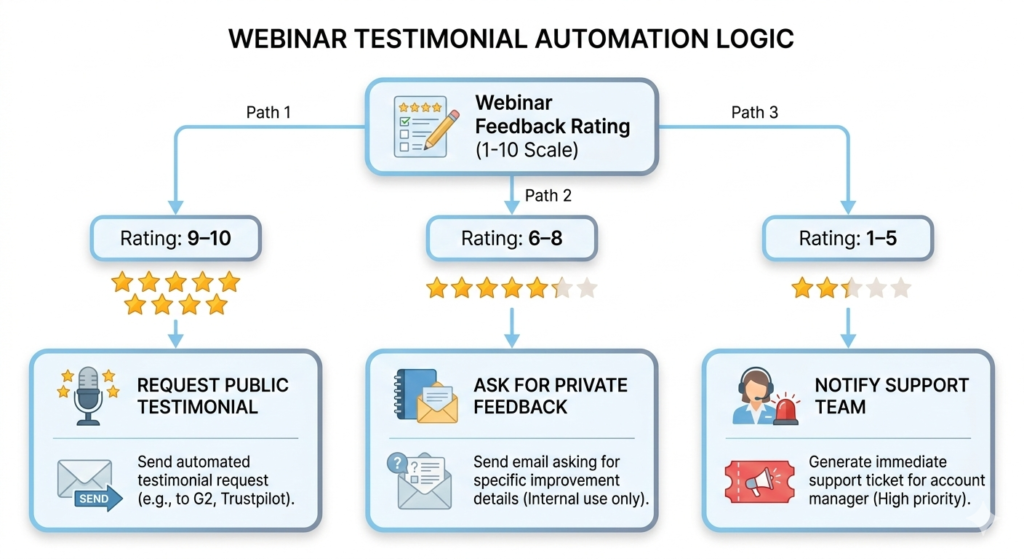
Inside your workflow, use if/else conditions.
Example structure:
- If email reply contains positive keywords
→ Send testimonial request - If no reply
→ Send gentle reminder - If negative feedback
→ Route to support team
This prevents asking unhappy attendees for public reviews.
Collecting Video Testimonials Automatically
Video testimonials convert 3–5x better than written ones.
Inside your workflow:
- Add a form link
- Or integrate a video collection tool
- Embed a simple upload form
Email example:
“If you’re comfortable, a 30-second video sharing your experience would be incredible. Totally optional — but powerful.”
Keep it simple.
The easier you make it, the more responses you’ll receive.
Repurposing Testimonials for Maximum Impact
Once testimonials are collected, don’t let them sit in your CRM.
Use them across:
- Webinar registration pages
- Replay pages
- Sales pages
- Email sequences
- Paid ads
- Social media
In GoHighLevel, you can:
- Store testimonials in custom fields
- Create a custom object for testimonial tracking
- Tag contacts as Brand Advocate
Now your testimonials become assets, not just feedback.
Timing Strategy That Increases Response Rates
Timing is everything.
Here’s a high-converting structure:
- Immediately after the webinar
Thank you message - 24 hours later
Ask for feedback - 48 hours later
Ask for a testimonial. - 5 days later
Final reminder
The key is spacing. Not pressure.
People respond when they feel appreciated, not chased.
Automating Google Review Requests
If your webinar leads to a service or product purchase, you can automate Google review collection.
Inside your workflow:
- Trigger when opportunity moves to Won
- Send review link
- Wait 2 days
- Send reminder
Keep it short:
“We’d love your feedback — it helps others trust us.”
This strengthens both social proof and SEO visibility.
Mistakes to Avoid
Even great automation can backfire if poorly structured.
Avoid:
- Asking for testimonials immediately after webinar ends
- Sending long, formal requests
- Not filtering unhappy attendees
- Over-reminding
- Forgetting to repurpose testimonials
Keep it simple. Personal. Time.
How This Impacts Your Revenue
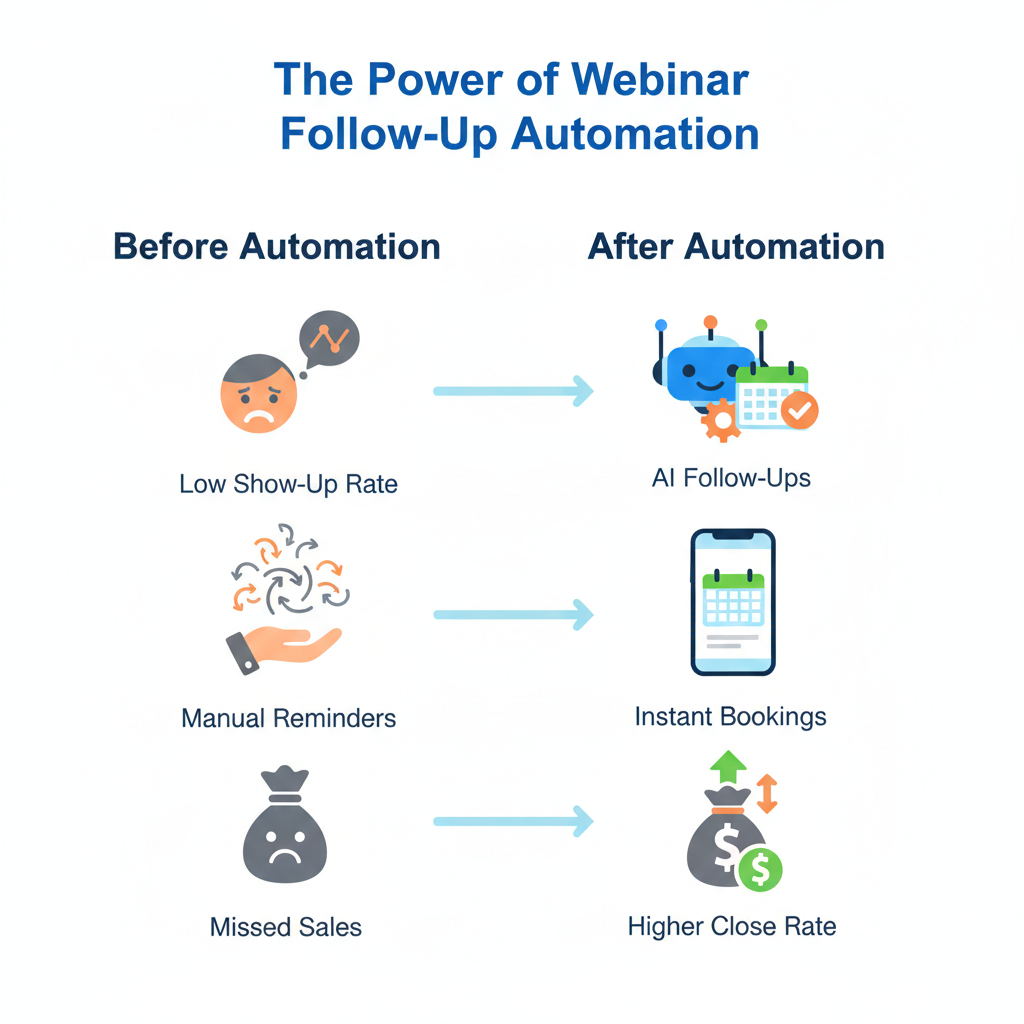
- Registration rates increase
- Show-up rates improve
- Conversion rates rise
- Sales cycles shorten
- Trust accelerates
Frequently Asked Questions
How soon should I ask for a webinar testimonial?
Can I automate video testimonial collection?
What if someone leaves negative feedback?
Should I offer incentives for testimonials?
Can I reuse webinar testimonials for ads?
Conclusion
Webinars generate leads. Sales follow-ups close deals. But testimonials build trust—and trust scales revenue.
A webinar review & testimonial automation workflow ensures that no positive experience goes undocumented.
When structured properly inside GoHighLevel, the system:
- Feels personal
- Protects your brand
- Collects high-quality reviews
- Strengthens your marketing
- Runs on autopilot
If you’re running webinars without collecting testimonials automatically, you’re leaving credibility — and conversions — on the table.